How to Lock a PDF File from Being Edited or Copied
Whether you are distributing confidential financial data, proprietary legal drafts, or sensitive intellectual property, relying on standard PDF settings can leave your data exposed. Discover how to genuinely lock a PDF file to prevent unauthorized editing, copying, and printing.
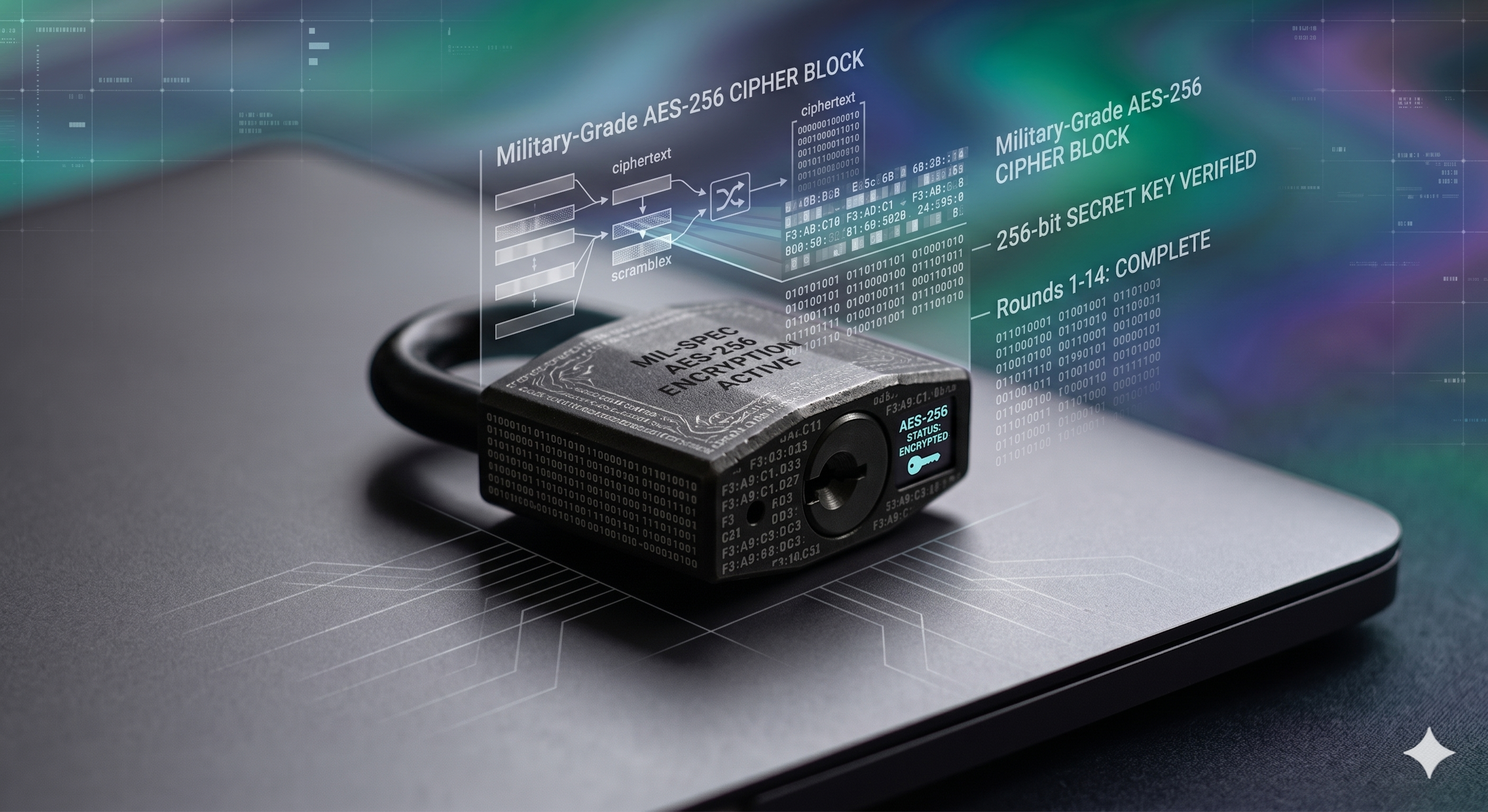
To lock a PDF from editing, you have two primary options: apply a Permissions Password using a native PDF editor (which sets restriction flags but can be easily bypassed by online unlockers), or place the document inside an AES-256 Encrypted Vault using dedicated security software. For sensitive or commercial data, utilizing offline encryption software guarantees the PDF cannot be opened, copied, or modified without the cryptographic key.

The Reality of PDF Restrictions
When searching for ways to lock a PDF so it cannot be edited, most users immediately turn to Adobe Acrobat or Foxit Reader. These tools offer a built-in feature known as a "Permissions Password" (often confused with an "Open Password"). While convenient, understanding the mechanical difference between a document restriction and actual encryption is critical for your data's safety.
Protection Method Visualizer
Select a method below to understand how the restriction is technically enforced.
How Permissions Passwords Work
A permissions password injects metadata flags into the PDF code, signaling to compliant PDF readers: "Do not allow the user to click print, copy text, or use editing tools."
- ⚠ The Vulnerability: The file itself is not scrambled. Non-compliant PDF readers, web browsers (like Chrome), or free "PDF unlocker" websites routinely ignore these metadata flags, granting full editing and copying rights within seconds.
How Cryptographic Encryption Works
Using a tool that applies AES-256 encryption scrambles the raw binary data of the PDF file. It places the file inside a secure container (a "locker").
- ✓ The Advantage: The PDF cannot be viewed, copied, printed, or edited by any software, browser, or hacking tool without the exact cryptographic key (your master password). It is mathematically impenetrable.
How to Lock a PDF File: 3 Approaches
Depending on the sensitivity of your document, you can choose between native tools, online utilities, or dedicated offline encryption.
Method 1: Native PDF Editors (Adobe Acrobat / Foxit)
If you only need to deter casual tampering, applying a permissions password via your PDF editor is the fastest route.
- Open your PDF in Acrobat Pro or Foxit Reader.
- Navigate to File > Properties > Security.
- Select Password Security.
- Check the box labeled "Restrict editing and printing of the document."
- Enter a unique Permissions Password and save the file.
Best for: Low-risk internal documents where casual copy/paste deterrence is sufficient.
Method 2: Free Online PDF Lockers
Numerous websites offer free PDF locking. You upload your file, set a password, and download the locked version.
Warning: We strongly advise against using online tools for sensitive information. Uploading unencrypted confidential files to a third-party server exposes your data to interception, server breaches, and murky privacy policies. Once the file leaves your local machine, you lose control of its security chain.
Method 3: Dedicated Offline Software (AES-256)
For financial records, intellectual property, or legally binding contracts, relying on application-level metadata flags is insufficient. You must use dedicated desktop software to cryptographically lock the PDF file. This prevents the file from being accessed or modified under any circumstances.
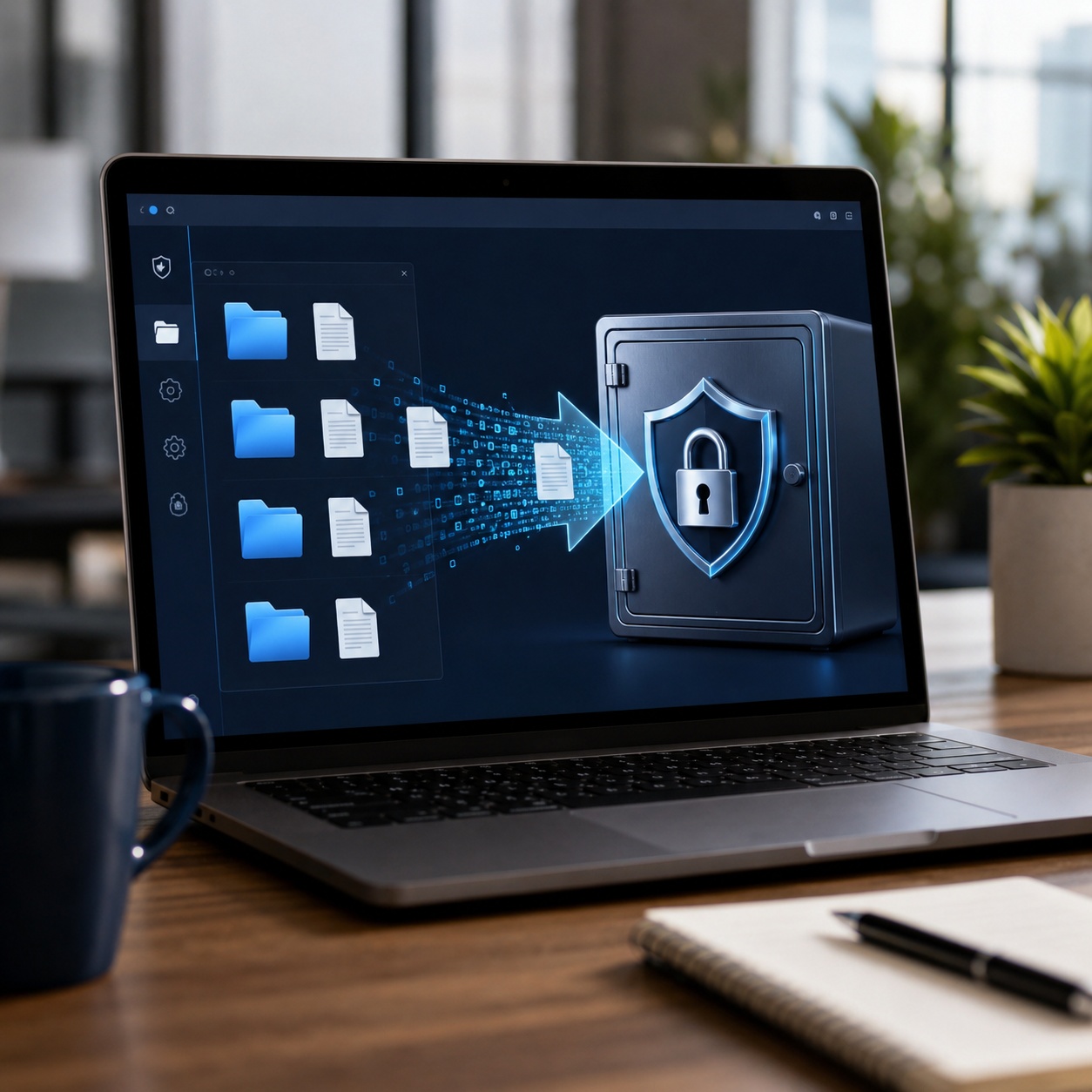
The Tool We Recommend for Absolute Document Security
Of all the options we evaluated for locking sensitive PDFs, relying on built-in application settings leaves too much to chance. For genuine, impenetrable security that prevents editing, copying, or even unauthorized viewing, we recommend utilizing AES-256 encryption via Folder Lock.

How Folder Lock Secures Your PDFs
Unlike native PDF readers that merely ask a program to restrict editing, dedicated software fundamentally alters how the file is stored and accessed.
- On-the-Fly Virtual Decryption
- When you lock a PDF in a Desktop Locker, it is encrypted locally. When you need to read or edit the PDF, Folder Lock decrypts it directly into memory (RAM) rather than the hard drive. Once you close the application, the locker automatically unmounts, leaving zero unencrypted footprints behind.
- Secure Asymmetric Sharing (RSA 4096-bit)
- If you need to share a protected PDF with a colleague, sending a password via email is a massive vulnerability. Folder Lock allows you to share encrypted files directly. The recipient uses their own Folder Lock account to authenticate, eliminating the need to transmit vulnerable passwords.
- Encrypted Cloud Synchronization
- Storing unencrypted PDFs on Dropbox or Google Drive relies entirely on the cloud provider's server security. Folder Lock integrates directly with these services, ensuring your PDFs are cryptographically scrambled before they leave your computer.
- Portable USB Lockers
- Need to hand off a locked PDF physically? You can convert your encrypted vault into a self-contained `.flka` file, place it on a thumb drive, and confidently hand it over, knowing the contents are mathematically sealed.

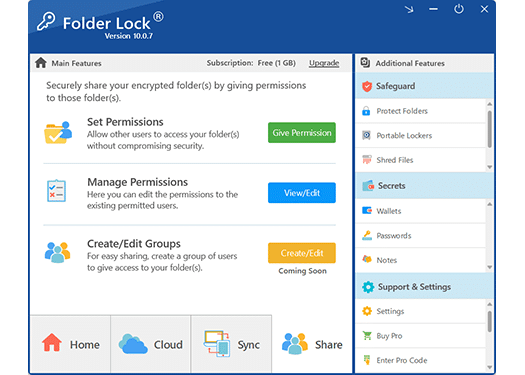
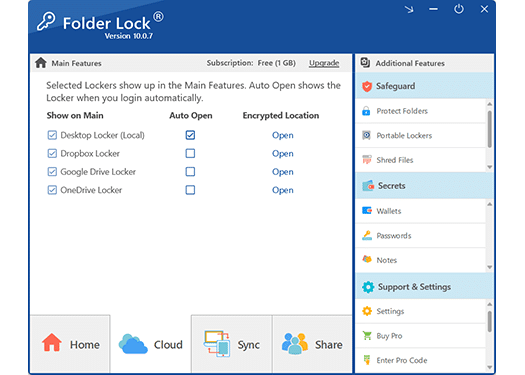
Security Method Comparison
Not all locks are created equal. Here is a technical breakdown of how different methods handle document restriction.
| Protection Method | Ease of Use | Bypass Difficulty | Ideal For |
|---|---|---|---|
| Native Application Restrictions | |||
| PDF Permissions Password | High | Low (Easily stripped online) | Internal memos, casual deterrence |
| Third-Party Security | |||
| Online PDF Lockers | High | Medium (Data exposed to server) | Non-sensitive public files |
| Folder Lock (AES-256 Vault) | High | Extremely High (Mathematical) | Financial data, Intellectual Property |
Tutorial: How to Lock a PDF File Using Folder Lock
Securing your files offline is a straightforward process. Follow these steps to ensure your PDF cannot be opened, copied, or edited.
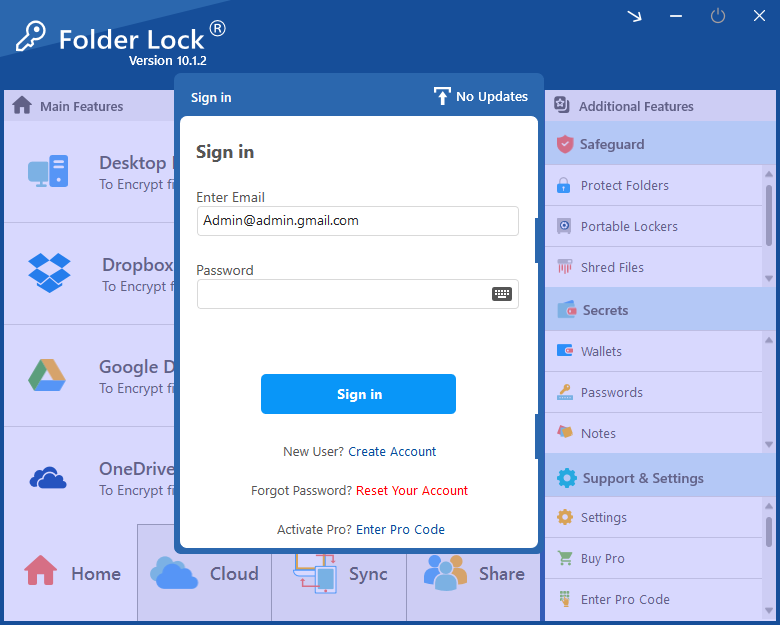
Step 1: Authenticate Your Locker
Launch Folder Lock on your PC and enter your master password. Navigate to the Desktop Locker section and click Open. This mounts your secure virtual drive.
Step 2: Transfer Your PDF
Locate the sensitive PDF on your computer. Drag and drop the file directly into the open Desktop Locker window (which appears as a standard folder labeled Z: or similar).
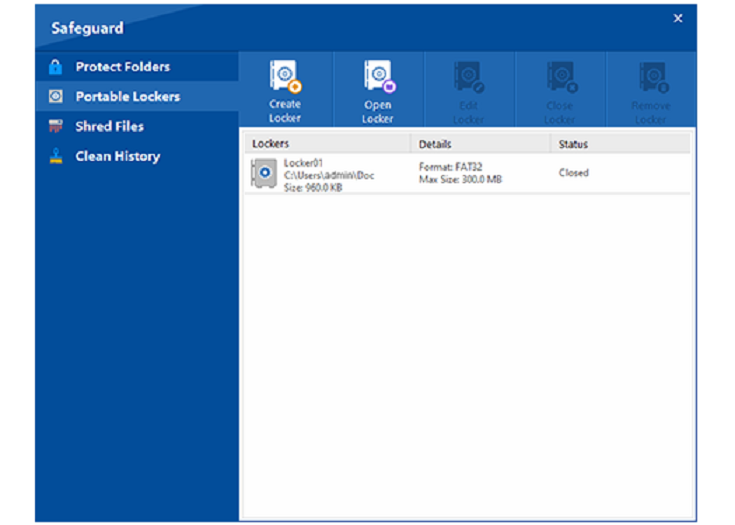
Step 3: Seal the Vault
Return to the Folder Lock dashboard and click the red Encrypt button next to your Desktop Locker. The drive will immediately unmount, hiding the locker and encrypting the PDF within seconds.

Understanding PDF Passwords: Open vs. Permissions
If you choose to use native PDF software, you must understand the distinction between the two password types available.
The Open Password
This password encrypts the document. If you do not have the Open Password, you cannot see the contents of the PDF at all. This is stronger than a permissions password, but still relies on the PDF format's specific encryption standards, which can sometimes be brute-forced if weak.
The Permissions Password
This password allows anyone to open and read the document, but it supposedly restricts editing, printing, or copying text. As mentioned earlier, this is a metadata request, not a cryptographic lock. Many alternative PDF viewers ignore this request entirely.
If your goal is to guarantee that a file cannot be edited or stolen, you must move beyond format-specific passwords and utilize system-level cryptographic vaults.

Choose Your Protection Level
Select your required security features below to see which version of Folder Lock fits your document management needs.
Folder Lock Free
Perfect for basic local encryption up to 1GB and syncing across 2 devices.
Download Free Version →
Troubleshooting Locked Files
How to remove edit protection from a PDF I own?
If you applied a permissions password natively and forgot it, you are technically locked out of editing. However, because permissions passwords are weak, you can often regain access to your own file by uploading it to a reputable cloud drive (like Google Drive), opening it in the browser preview, and selecting "Print to PDF". The newly saved PDF will often be stripped of its permission restrictions.
What if I forget my Folder Lock master password?
Folder Lock operates on a zero-knowledge architecture. If you forget your master password, NewSoftwares cannot retrieve your encrypted data. You must utilize the password recovery protocols established during your initial setup (via your registered email). Always store your master password in a secure password manager.
Can Google open a password-protected Office or PDF file?
If a PDF is secured with a native Open Password, Google Drive will prompt you for the password before generating a preview. If the file is encrypted inside a Folder Lock vault synced to Google Drive, Google cannot scan, preview, or index the contents at all. It will simply appear as an encrypted data blob until decrypted locally on your machine.
Why Professionals Trust Dedicated Encryption

"Being in the legal industry, client data security is utmost. We cannot rely on basic document passwords that can be easily stripped. Putting our sensitive PDFs into AES-256 encrypted vaults serves our purpose completely."
"I want to congratulate the team on an outstanding product—the encryption technology is truly sound and gives me full confidence in protecting my confidential business plans from unauthorized copying or editing."
Frequently Asked Questions
How to lock a PDF without a password?
To lock a PDF without managing document-specific passwords, use encryption software like Folder Lock. You place the PDF inside a protected folder or locker. The file is secured system-wide under your single master account password, rather than putting a unique password on the PDF file itself.
What is the difference between an open password and permissions password?
An open password encrypts the PDF, requiring the code just to view the document. A permissions password allows anyone to view the file but attempts to restrict actions like printing, copying, or editing via metadata flags.
Can a password-protected document be hacked?
Yes. Standard PDF permission passwords are easily bypassed by free online unlockers. PDF Open passwords can be brute-forced if weak. However, files secured inside AES-256 cryptographic vaults (like Folder Lock) are mathematically impenetrable to current brute-force hacking methods.
How do I share a password-protected document safely?
Never email a file and its password in the same message. Ideally, use a tool with asymmetric encryption sharing. Folder Lock allows you to share access directly to another user's account without ever transmitting the password.
How to lock a PDF from editing without Adobe Acrobat Pro?
You can use offline encryption software to secure the file at the system level. Once locked inside an encrypted vault, the PDF cannot be accessed or edited by any software, bypassing the need for an expensive Acrobat subscription entirely.
The Bottom Line on Document Security
If you are simply trying to stop a colleague from accidentally altering a template, a native PDF permissions password might suffice. However, if your goal is to truly lock a PDF file from being edited, copied, or stolen, application-level restrictions are dangerously inadequate.
For genuine security, you must encrypt the data at rest. By placing your sensitive documents inside an AES-256 encrypted locker, you ensure that no unauthorized user, browser, or hacking tool can bypass your restrictions.